Check-In Mode is for the welcome desk. A greeter checks people in for them — handy for people without a smartphone, families arriving together, or anyone who'd rather not scan.
Before you start
- Your greeter needs a Steadyfaith login. Invite them from Settings → Team with the Check-In Team Member role — they'll see attendance and check-in, not giving or settings. Team & roles
- A tablet or laptop with an internet connection.
Start Check-In Mode
- Open Attendance — Choose Attendance in the dashboard menu, then Check-In Mode.
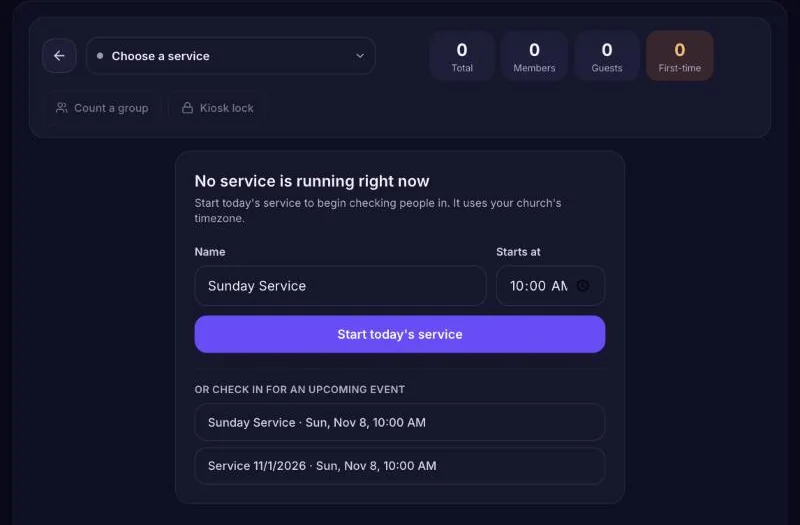
- Choose a service — Pick today's service. If there isn't one yet, choose Start a service today. You can also check in for an upcoming event.
- Find the person — Type their name or phone number. People who usually come are listed under Expected today, so regulars are often one tap away.
- Check them in — Tap their name. If they arrived with their household, you can check the whole family in together.
- Add a new guest — Tap New guest, enter their first name and mobile number, and mark Yes, first visit if it's their first time. They're added and checked in at once.
Count a group
For a group you don't check in one by one — a youth class, the nursery, an overflow room — use Count a group to record a headcount for the service.
Lock the screen for a welcome desk
Turn on Kiosk lock to keep the tablet in Check-In Mode, so no one can wander into the rest of the dashboard. To leave, choose exit and hold to exit.