Switching from another system? Import what you already have so your directory, attendance and giving history are complete from day one. Open Data migration from the dashboard menu.
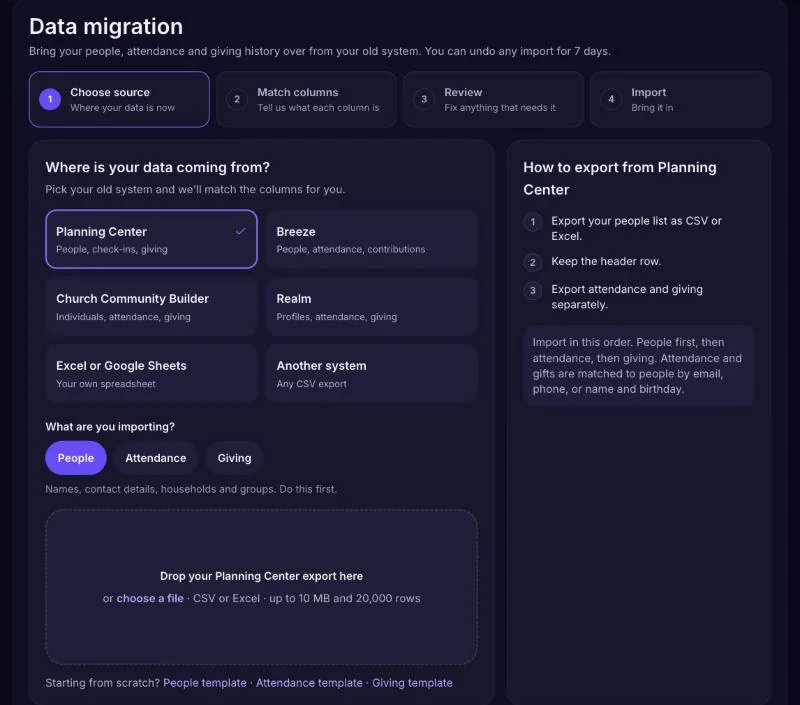
What you can import
- Members — names, contact details, households and groups. Do this first.
- Attendance — past check-ins. This helps "We miss you" know who has been away.
- Donations — past gifts by fund, so giving history and year-end statements are complete.
Steadyfaith recognizes exports from Planning Center, Breeze, Church Community Builder and Realm, as well as Excel or Google Sheets and any other CSV export.
Run an import
- Export from your old system — Save it as CSV or Excel. Files can be up to 10 MB and 20,000 rows; split bigger files into parts.
- Choose your source and upload — Pick where the file came from and what's in it, then drop in the file.
- Match the columns — Steadyfaith matches most columns for you. Check anything it wasn't sure about, like which column is the mobile number.
- Review — See how many records are ready, and fix anything flagged before you import.
- Import — Steadyfaith brings everything in and shows you how many people, check-ins or gifts were added. If something looks wrong, you can undo your latest import of each type for 7 days.
After importing
- Open People and look over the records that need attention — duplicates and missing contact details are the usual ones. People directory
- Your past imports are listed on the Data migration page, so you can see what came in and when.
Stuck on an export from your old system? Open a request in Help & support — we can help you find the right export.