Steadyfaith builds a statement for each giver from the gifts it has on record, so you don't have to send them one by one. Find them in Giving → Statements.
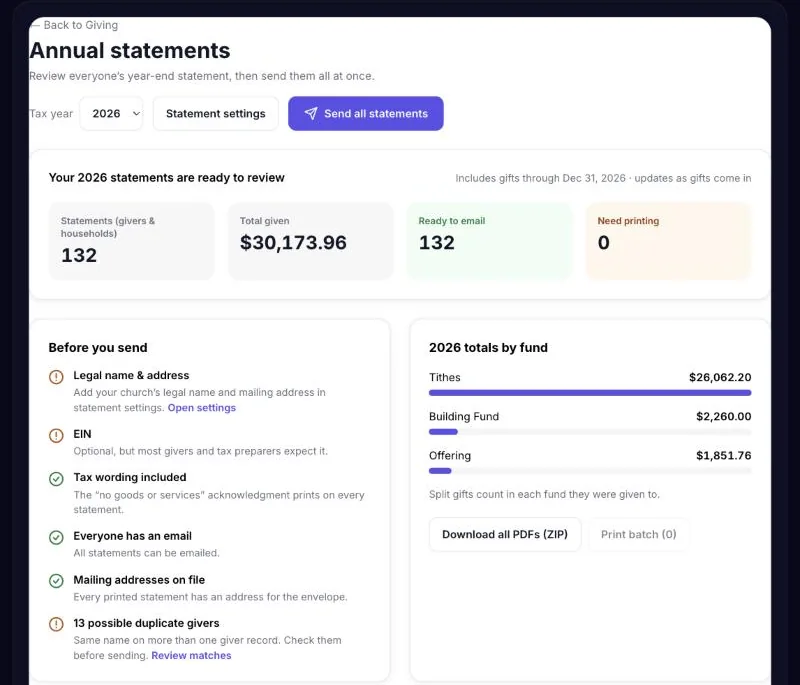
Before you start
- Check your statement wording and EIN in Settings → Giving → Receipts & statements.
- If people gave through another system earlier in the year, import those gifts first so statements are complete.
- Skim Givers this year and No email on file on the Statements page — fixing a missing email now saves a stamp later.
Send statements
- Open Statements — Go to Giving → Statements, pick the year and choose Send all statements.
- Check who gets what — Steadyfaith splits givers into By email, Print & mail (no email, or they asked for paper) and Skipped (they already have one). Turn on One statement per household if couples give together.
- Pick how it's delivered — Secure download link is recommended: it lands in inboxes more reliably, you can see who opened it, and the link works for 90 days. PDF attached to the email is familiar for some people but more likely to end up in spam.
- Write the email — Adjust the message, using the Insert buttons to add details like the giver's name.
- Choose when — Send now, or pick a date and time.
- Send a test first — Send one to yourself and open it on your phone.
- Send — Confirm, and Steadyfaith sends them. You can cancel anything that hasn't gone out yet.
Print the rest
After sending, open the send's results. Use Download print batch (PDF) for everyone who needs paper, then Mark all as mailed once they're in the post. Anyone whose email bounced is listed under Bounced or failed — fix their address and resend, or move them to the print batch.
Corrections
If a gift changes after statements go out — a refund, a late gift or two givers merged — the Statements page tells you how many changed. Choose Review & send corrected statements and each of those givers gets a new statement marked "Corrected" with the date.