Give your team their own logins instead of sharing one. Each person gets a role that decides what they can see. Manage your team in Settings → Team.
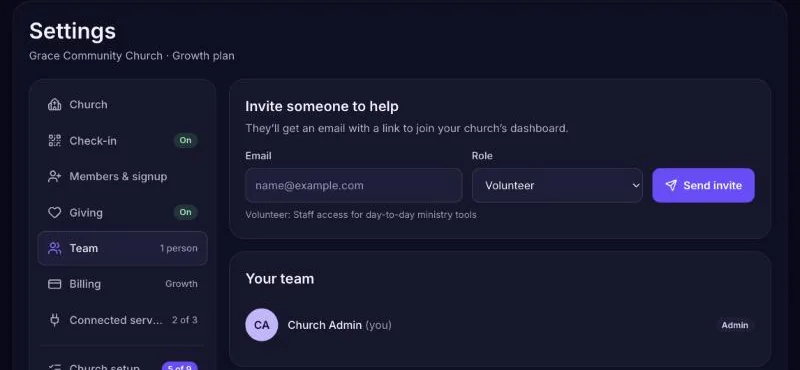
Invite someone
- Open Team — Go to Settings → Team.
- Add their email and pick a role — See the roles below.
- Send invite — They get an email with a link to join your church's dashboard. Until they accept, they show as Pending. You can also copy the invite link and send it yourself.
Roles
| Role | What they can do |
|---|---|
| Pastor | Staff access, plus giver details when your church turns that on |
| Admin | Everything except connecting Stripe |
| Volunteer | Day-to-day ministry tools |
| Check-In Team Member | Attendance and check-in only — ideal for greeters |
| Finance/Giving Admin | Giving and finance only, not the rest of the church admin |
The person who created your church is the owner. Only the owner can connect or change your Stripe account.
How many people can I invite?
Free includes 2 admin seats, Starter 5, and Growth unlimited. Pending invites count toward the total until they're accepted or removed. Compare plans